Camiscorder
App Store previews, without the video editor.
Record your app’s window or bring in footage, then turn it into a polished Mac App Store preview: styled backgrounds, zooms, an editable cursor, keyboard callouts and captions in every language. A built-in checklist makes sure it meets Apple’s specs before you upload.
Mac · macOS 14 or later. Caption translation needs macOS 15.
How it works
Four steps, start to finish.
- 1
Capture
Record one app window with a 3-2-1 countdown and its audio, or import a movie or image.
- 2
Shape it
Follow the numbered steps: scenes, trim, pacing, background, cursor, zoom, captions, audio and poster frame.
- 3
Localize
Add languages and translate your captions. Your own edits are never overwritten.
- 4
Check and export
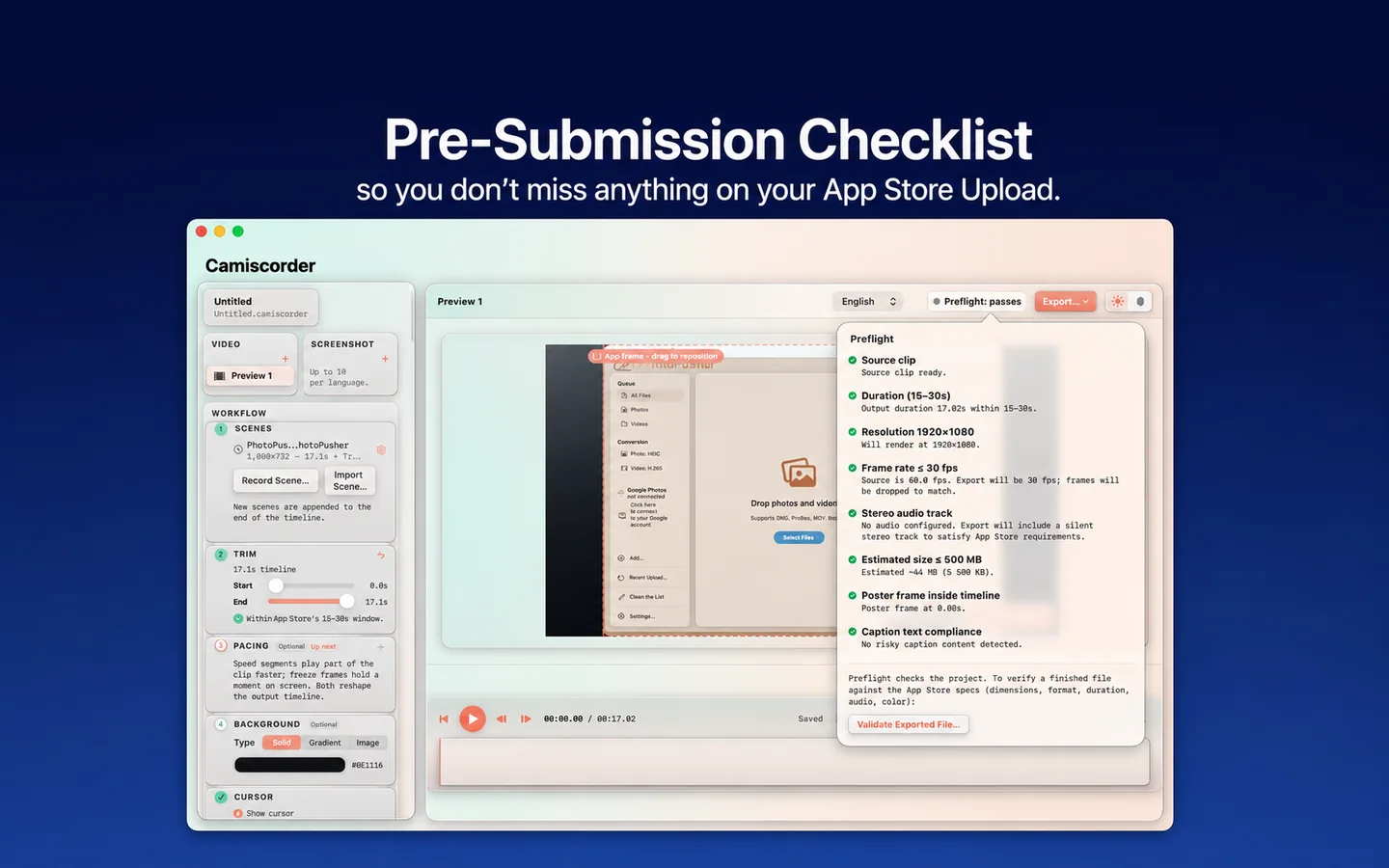
Preflight confirms Apple’s specs, then export a 1920×1080 preview and screenshots for each language.
A closer look
See it in action.
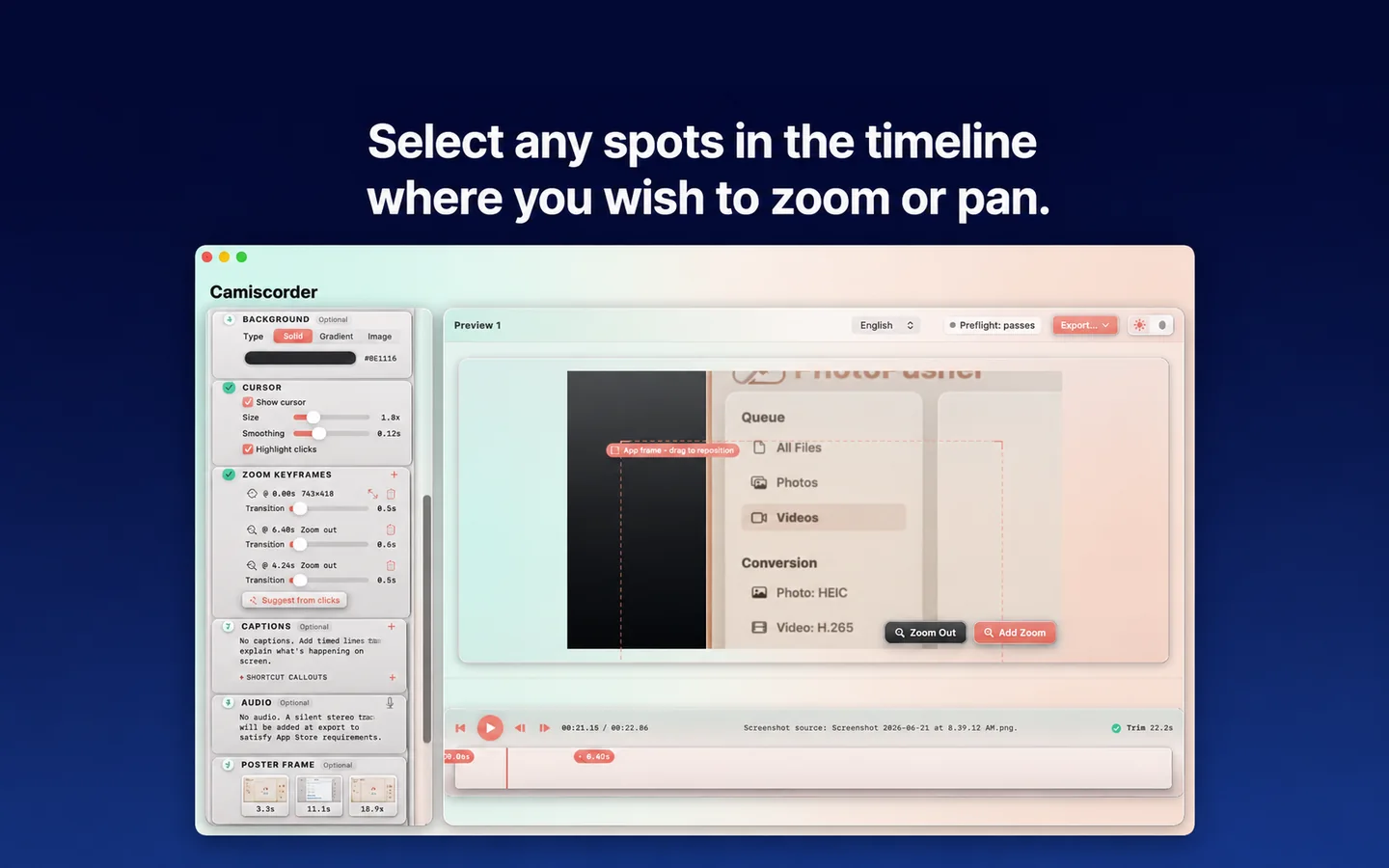
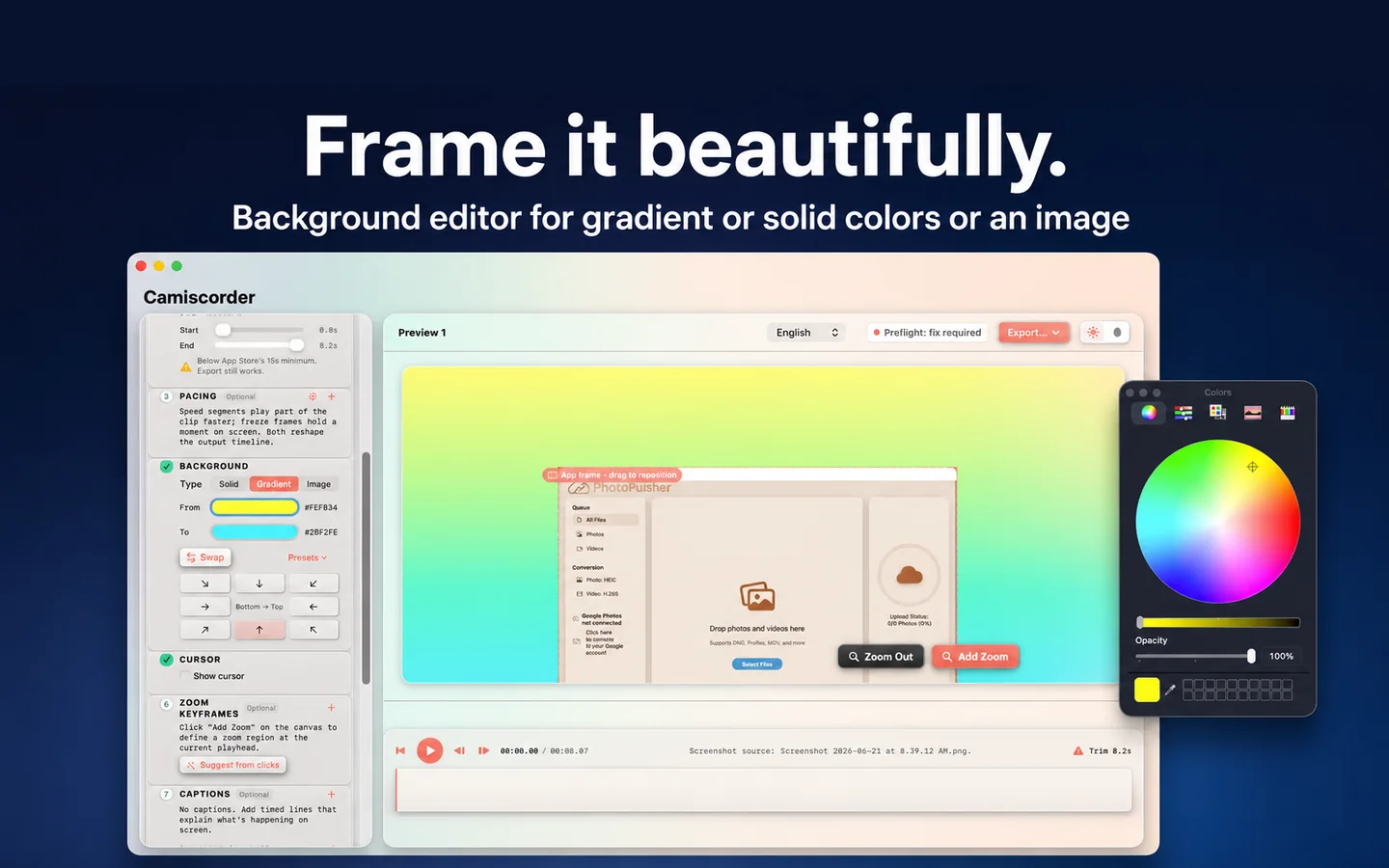
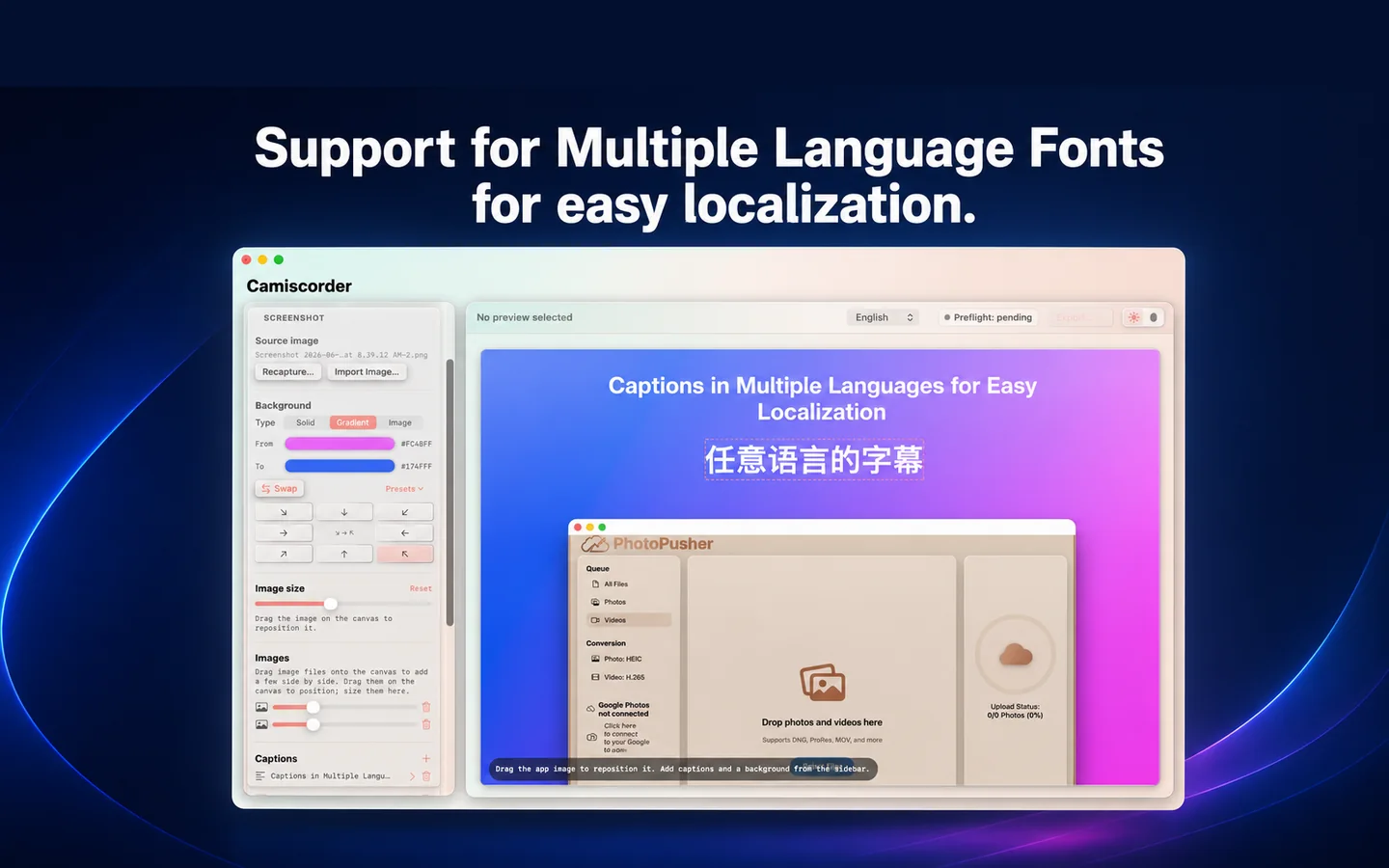
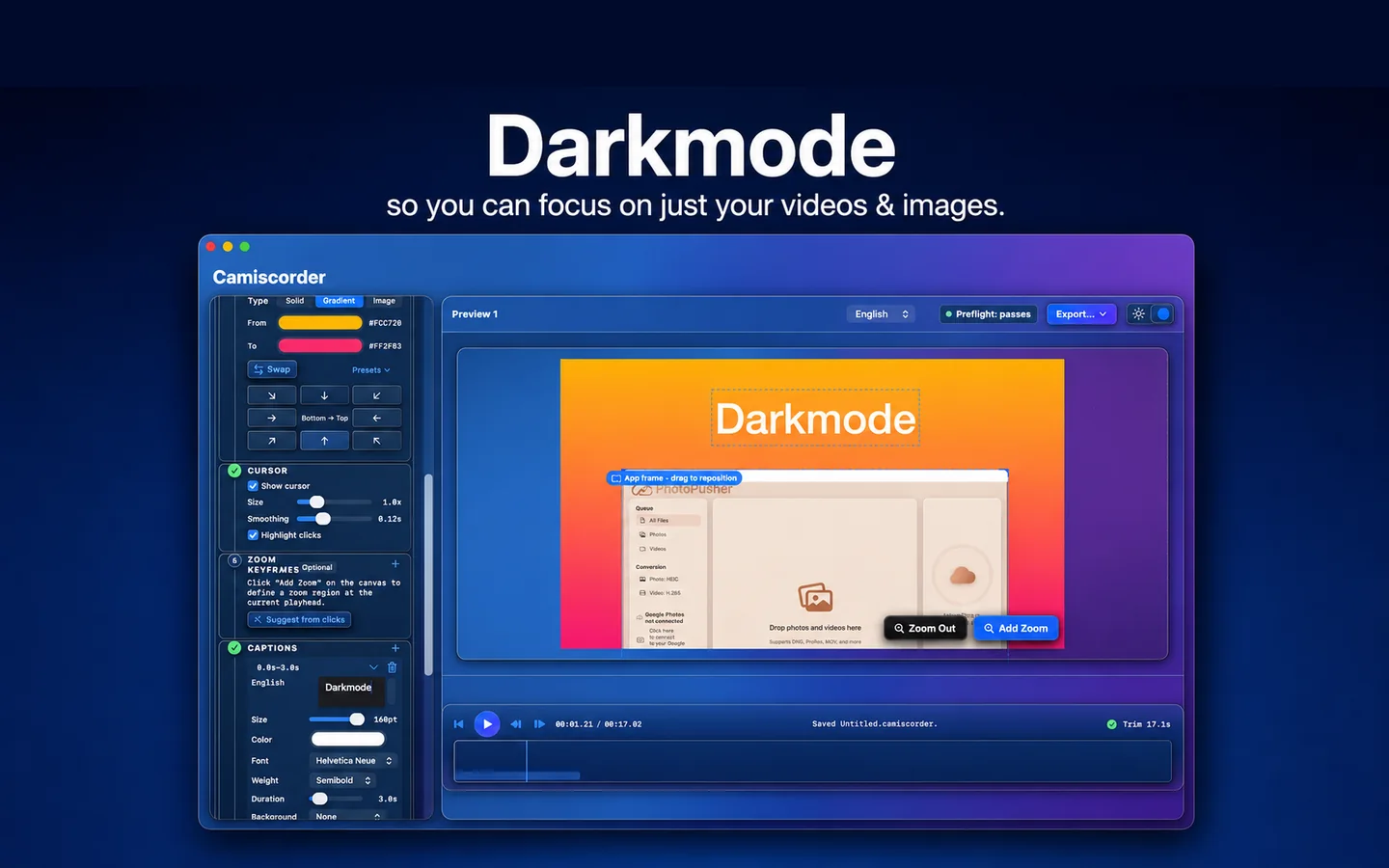
These are Camiscorder’s own App Store screenshots.
Features
What it does
Window recording
Captures just the app window you pick, with that app’s audio, a countdown and an automatic stop.
Smart cursor
The cursor is recorded separately, so its size, smoothing and click highlights stay editable. Zoom suggestions come from your clicks.
Scenes and transitions
Put several clips back to back with cuts or dips. Trimming keeps zooms and captions attached to the right moment.
Pacing
Speed up the slow parts and hold a freeze frame on the moments that matter.
Zoom and glide
Keyframed zooms frame the action, and a glide pans across without changing the zoom.
Backgrounds
Solid colors, gradients with presets, or your own image, with handles to scale and place the app.
Captions that behave
Twelve fonts and several styles. Captions move out of the way of zooms, and a check flags wording App Review may reject.
Translation and transcription
Translate captions into 31 preset languages, or draft captions from your voiceover.
Voiceover and music
Record a voiceover, add music and mix them with fades.
Screenshots too
Export Mac App Store screenshots at 2880×1800, 2560×1600, 1440×900 or 1280×800.
Privacy
Your projects stay on your Mac.
No data collected
No account, analytics or tracking, and no servers of our own. The App Store privacy label reads “Data Not Collected”.
Permissions with a purpose
Screen Recording to capture the window you pick, and optionally the microphone for voiceover and speech recognition to draft captions.
Apple frameworks, clearly
Caption drafting uses Apple’s speech recognition, which runs on your Mac where the language supports it. Translation uses Apple’s Translation framework.
Sandboxed
It only opens and saves the files and folders you choose.
Keyboard
Shortcuts worth knowing
Questions
Good to know
What does it export?
Mac App Store previews at 1920×1080 in H.264, 15 to 30 seconds, up to 30 fps with stereo audio, plus screenshots at the four Mac sizes.
Can I use footage I already have?
Yes. Import a .mov or .mp4, or a PNG or JPEG for screenshots.
Why does it need Screen Recording permission?
To capture the one app window you choose. You grant it in System Settings, under Privacy & Security.
Does it make iPhone or iPad previews?
Not yet. Camiscorder currently targets Mac App Store previews and screenshots.
What if my clip is too long?
Preflight flags it and offers a fix, such as trimming the output to 30 seconds.
How much does it cost?
$1.99 on the Mac App Store, with no in-app purchases.
Platforms
Mac
macOS 14 or later. Caption translation needs macOS 15.
More from Camis AI
All products
Terminal Champion
The command center for AI coding agents.

Vibe Marketing Coming soon
Chart a calmer app launch.
PhotoPusher
Every camera, straight into Google Photos.

Bellhaven Coming soon
A little ship. A great adventure.