 Coming soon
SmartClipboard
A clipboard that remembers, transforms and protects.
A menu-bar clipboard manager for Mac. Press ⌘⇧V in any app to find anything you’ve copied, paste it cleaned up or as plain text, and keep passwords and secrets out of your history.
Mac · macOS 14 Sonoma or later
How it works
Three steps, start to finish.
- 1
Turn it on
SmartClipboard lives in your menu bar. A short setup explains what it keeps, and capture stays off until you start it.
- 2
Copy as usual
Text, links, code, colors, images and files are saved on your Mac, labelled by type and source app.
- 3
Paste from anywhere
Press ⌘⇧V, type to search, then press Return or ⌘1–9. Add Shift for plain text.
A closer look
See it in action.
Shown with sample content.
Features
What it does
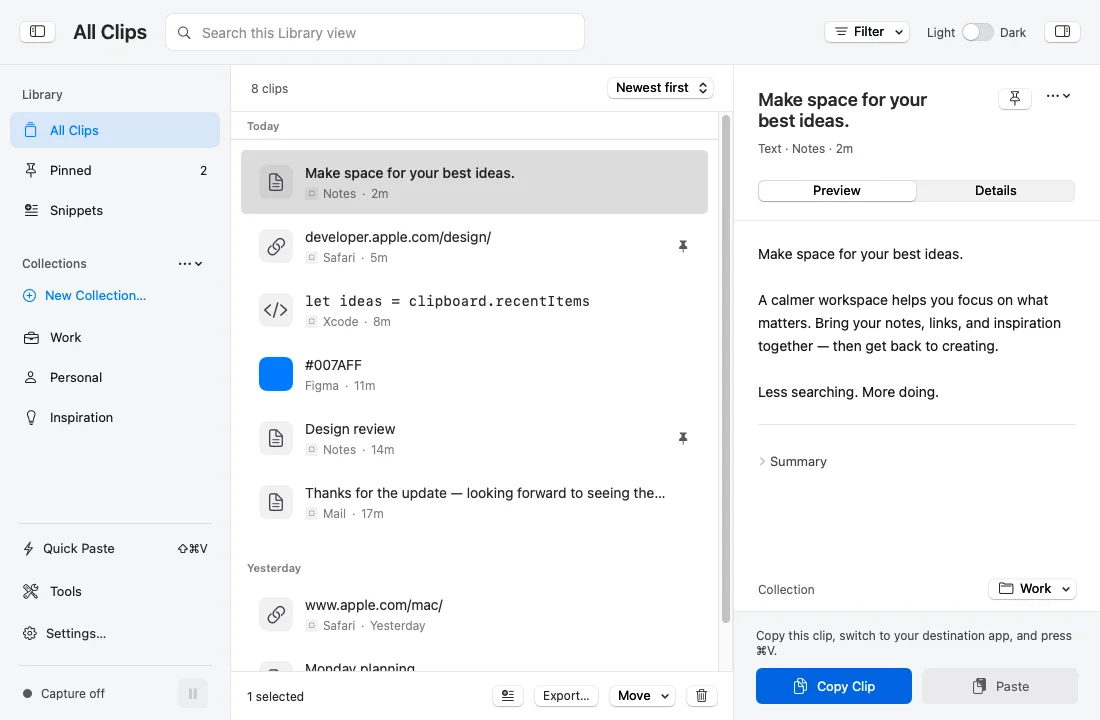
Clipboard history
Text, rich text, links, code, colors, images and file paths, each labelled with its type and the app it came from.
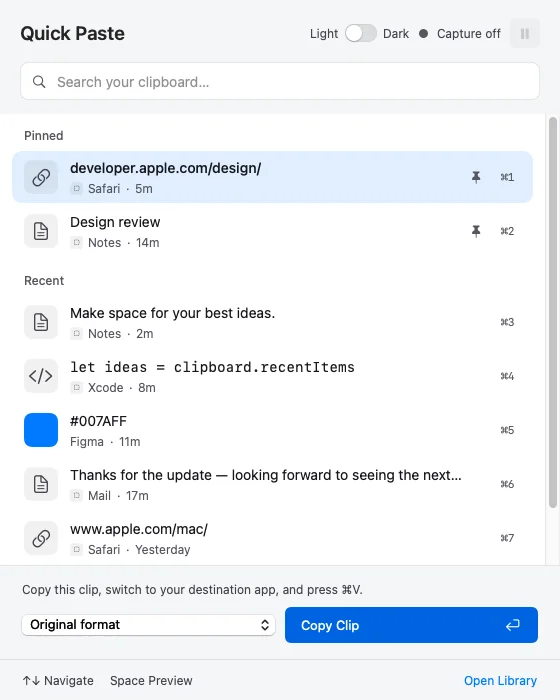
Quick Paste
A floating, searchable panel with pinned clips on top. Paste by position with ⌘1–9 or preview with Space.
Paste transforms
Paste as plain text, strip tracking from links, change case, trim, join into one line, paste as Markdown, or run a regex replace.
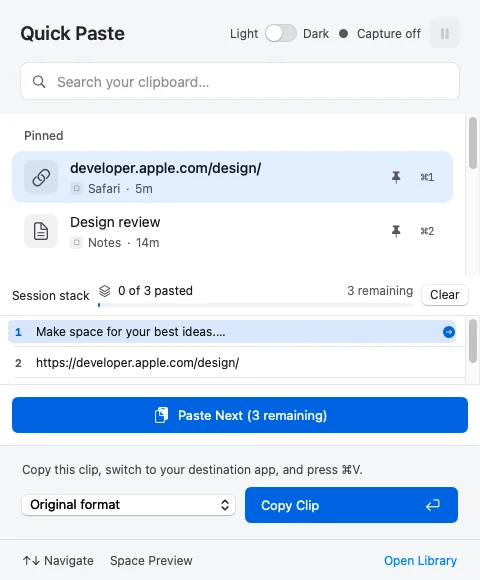
Paste stack
Queue several clips and paste them one after another with ⌘⇧B.
Snippets
Type a short keyword to expand saved text, with placeholders like {date} and {clipboard}. Off until you turn it on.
Library and collections
Browse, pin, filter and organize everything you’ve kept, with Undo for recent deletions.
Text in images
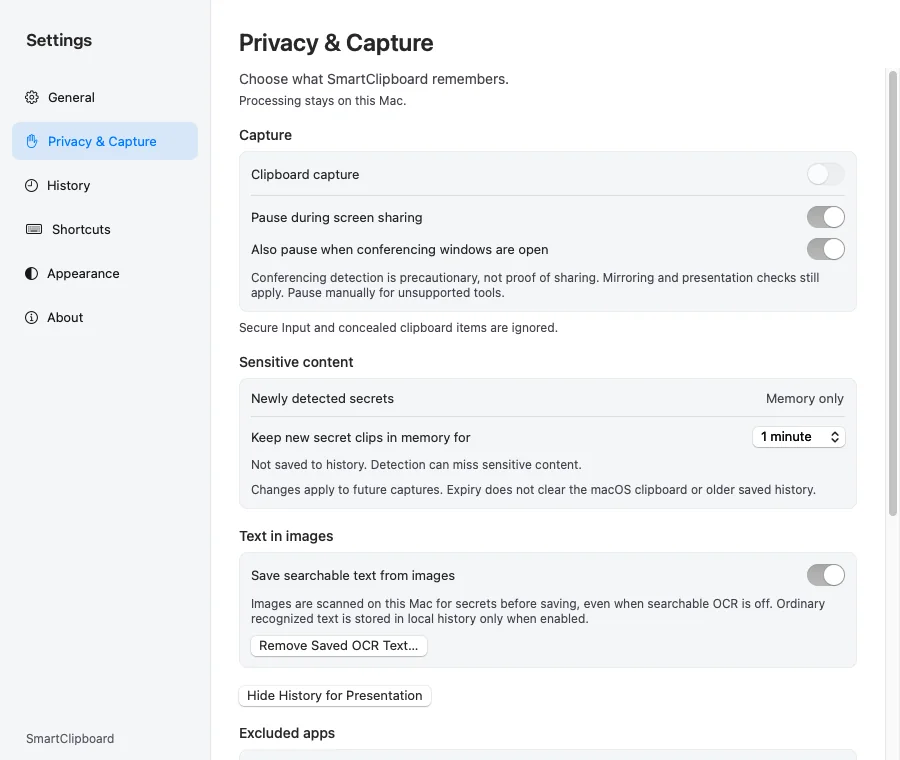
Copied images become searchable with on-device text recognition. You can turn saving that text off.
Secret handling
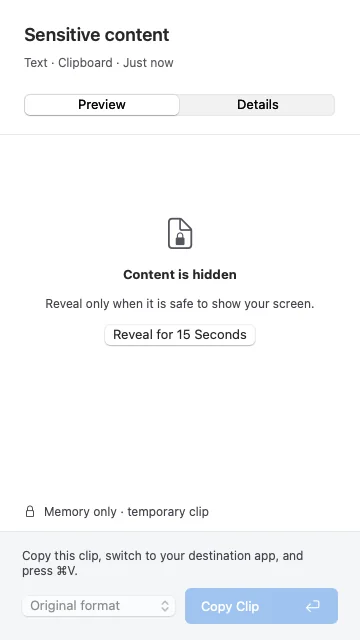
Likely passwords, keys and credentials are kept in memory only, masked until revealed, and left out of search and exports.
Privacy controls
Password managers are excluded by default. Exclude any app, pause capture, or pause automatically while sharing your screen.
Shortcuts and exports
Actions for the Shortcuts app, backup and restore, and export as text, Markdown or JSON.
Privacy
Everything stays on your Mac.
No network code
SmartClipboard doesn’t connect to the internet, and copying a link never triggers a request.
Concealed content respected
Content other apps mark as concealed is never read, and capture pauses while Secure Input is on.
Honest limits
History isn’t encrypted by the app, and detection can miss sensitive content. Exclude any app you don’t want captured.
Optional permissions
Accessibility lets it paste for you. Input Monitoring is only needed for snippets.
Keyboard
Shortcuts worth knowing
Questions
Good to know
Does it send my clipboard anywhere?
No. There’s no network code, and links you copy are never fetched.
Will it save my passwords?
It skips password managers and concealed content, pauses during Secure Input, and keeps detected secrets in memory only. Detection isn’t perfect, so exclude any app you’re unsure about.
Why does it ask for Accessibility?
macOS requires it for any app to paste on your behalf. Without it, you can still copy a clip and press ⌘V yourself.
Will it be on the Mac App Store?
No. SmartClipboard will be a direct download, which lets it paste into other apps for you.
Can I move my history to a new Mac?
Yes. Backup and restore covers clips, images, snippets, collections and exclusions. Detected secrets are never included.
Platforms
Mac
macOS 14 Sonoma or later
Get it
- Coming soon. The download will be linked here.