 Coming soon
FileShrink
Smaller images and PDFs, made on your Mac.
Drop in images, PDFs or a whole folder, set a size limit, and FileShrink makes smaller copies that fit. Your originals are never replaced, and nothing leaves your Mac.
Mac · macOS 14 or later
How it works
Four steps, start to finish.
- 1
Add files
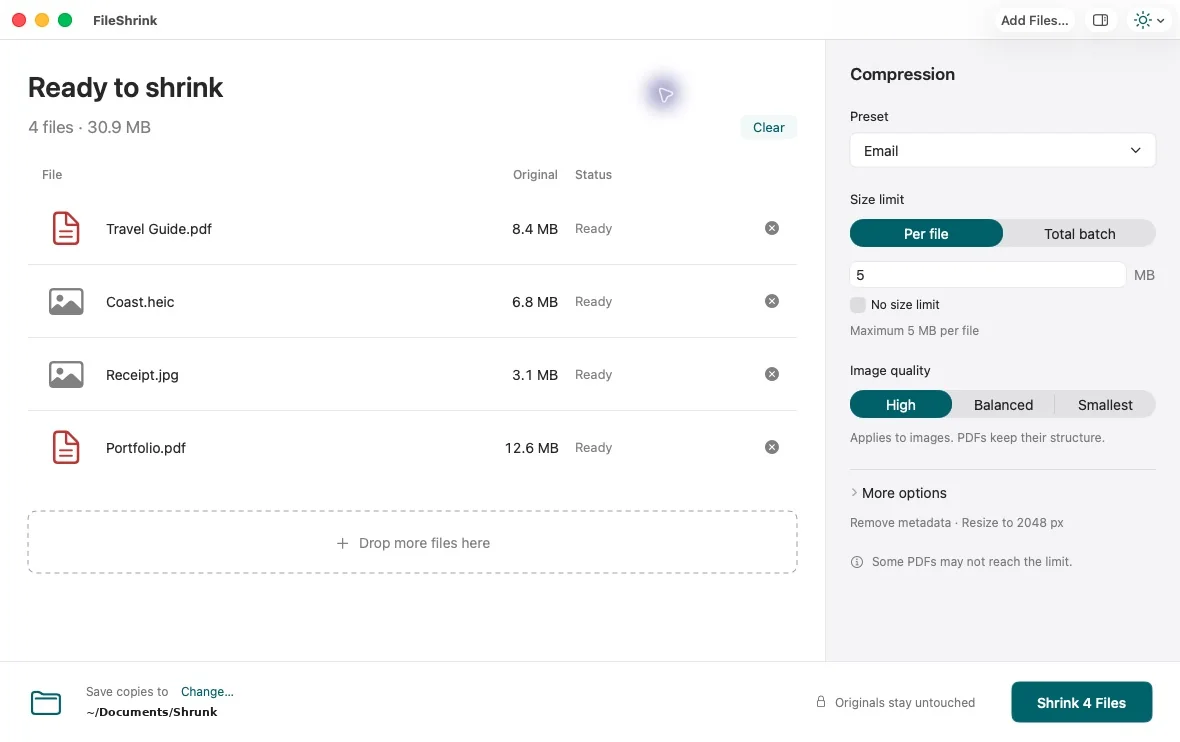
Drag in images, PDFs or a folder, use Add Files, or the Finder action.
- 2
Set a limit
Pick a preset like Email or Web, or set your own size per file or for the batch.
- 3
Shrink
Confirm where copies go and click Shrink. Existing files are never overwritten.
- 4
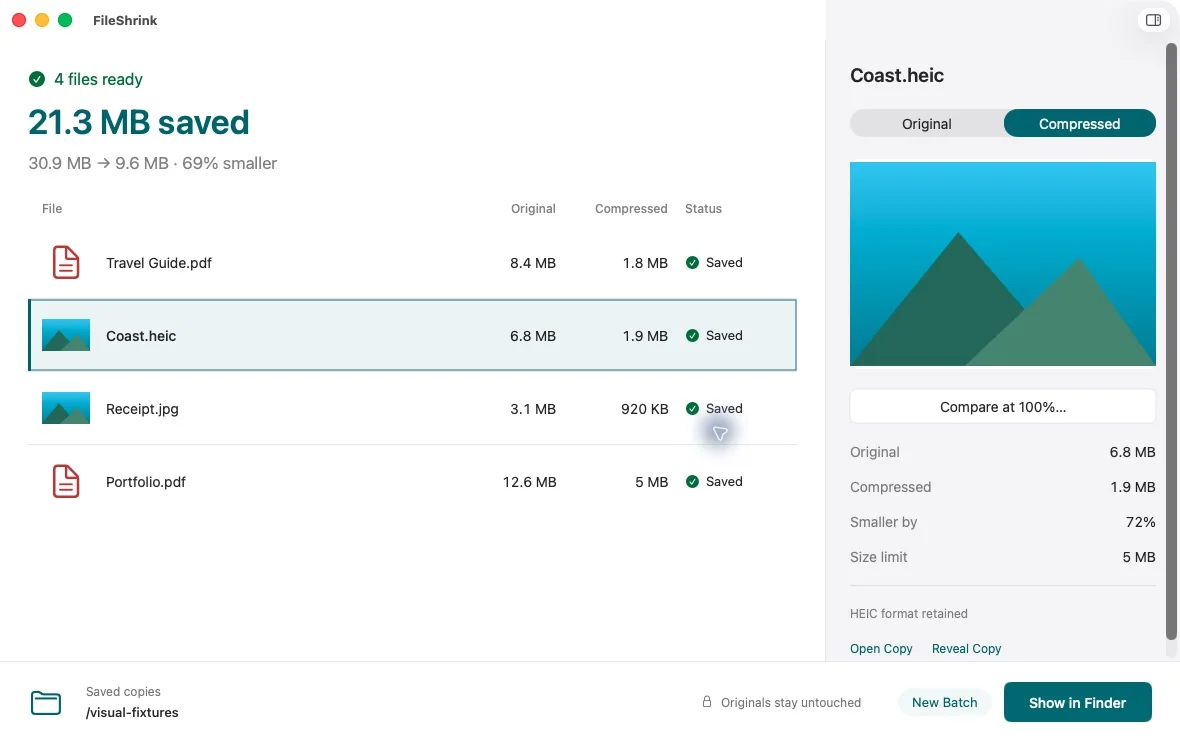
Check the results
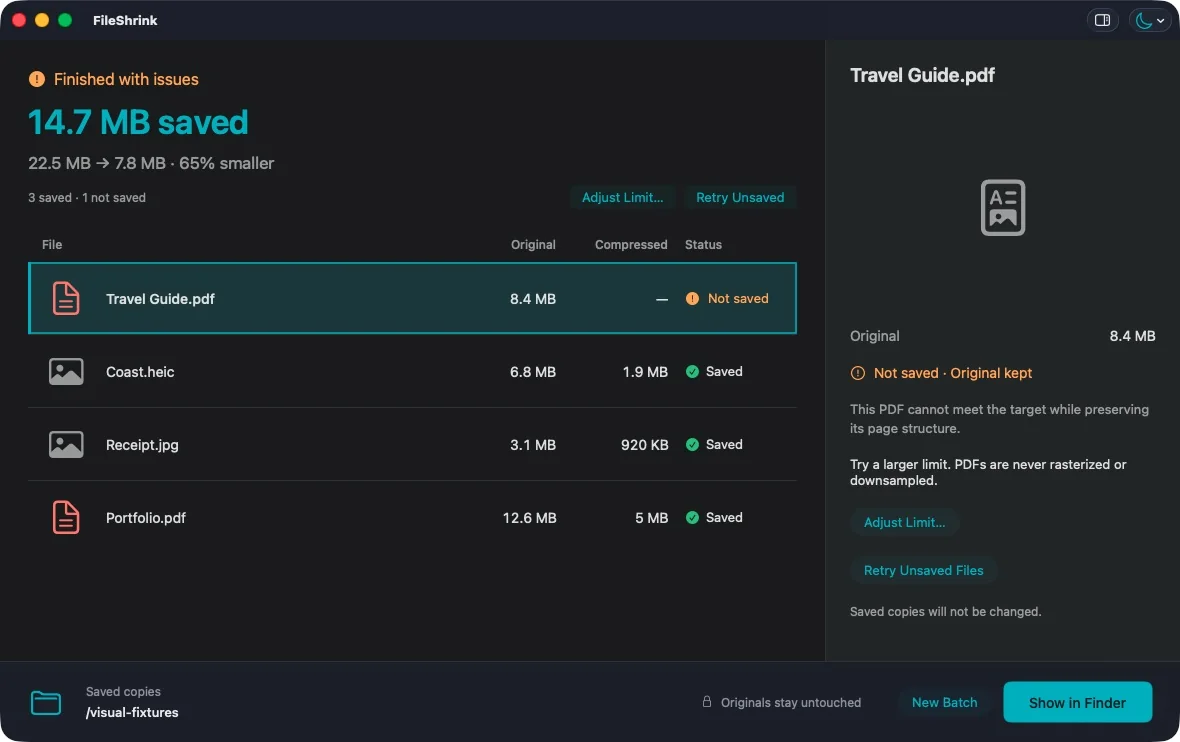
See what changed, compare at 100%, and retry anything that didn’t fit.
A closer look
See it in action.
Shown with sample files.
Features
What it does
Size limits
Set a maximum per file or one budget for the batch. Copies are never larger than the original.
Presets
Email, Applications, Insurance Claim, Web, Documents, Sharing and Small Images, or save your own.
Keeps the format
A HEIC stays HEIC and a PNG stays PNG, with orientation and color kept.
Careful with PDFs
PDFs are rewritten without turning pages into images and checked before saving. Encrypted or complex PDFs are left alone rather than damaged.
Optional metadata removal
Remove location and other details from photos, or document properties from PDFs. It isn’t a redaction tool.
Compare and preview
Compare at 100%, Quick Look, open, reveal or share each copy.
Clear recovery
If some files don’t fit, adjust the limit and retry. Successful copies stay as they are.
Finder action
Shrink up to 500 selected files right from Finder once you enable the extension.
Built for batches
Search, filter, sort and multi-select, with Undo, recent batches and recovery after a relaunch.
Privacy
Your files never leave your Mac.
No network access
FileShrink has no network code and doesn’t need an account.
Sandboxed
It only reads the files and folders you choose.
Your history, your call
Clear batch history and revoke folder access any time from Privacy Details.
Keyboard
Shortcuts worth knowing
Questions
Good to know
Does it upload my files?
No. Everything happens on your Mac, and the app has no network access.
Will it replace my originals?
No. It writes numbered copies to a folder you choose.
Which formats work?
JPEG, PNG, HEIC, TIFF and other still images, plus PDFs. Animated images, encrypted PDFs and complex PDFs such as signed forms are skipped.
What if a file can’t reach my limit?
Nothing is saved for that file, the original stays as it is, and you can raise the limit and retry.
How big a batch can I shrink?
Up to 500 files per batch, each up to 1 GB, with images up to 40 megapixels and PDFs up to 2,000 pages.
Platforms
Mac
macOS 14 or later
Get it
- Coming soon. The download will be linked here.