 Coming soon
LiftOff
Your apps, organized and one keystroke away.
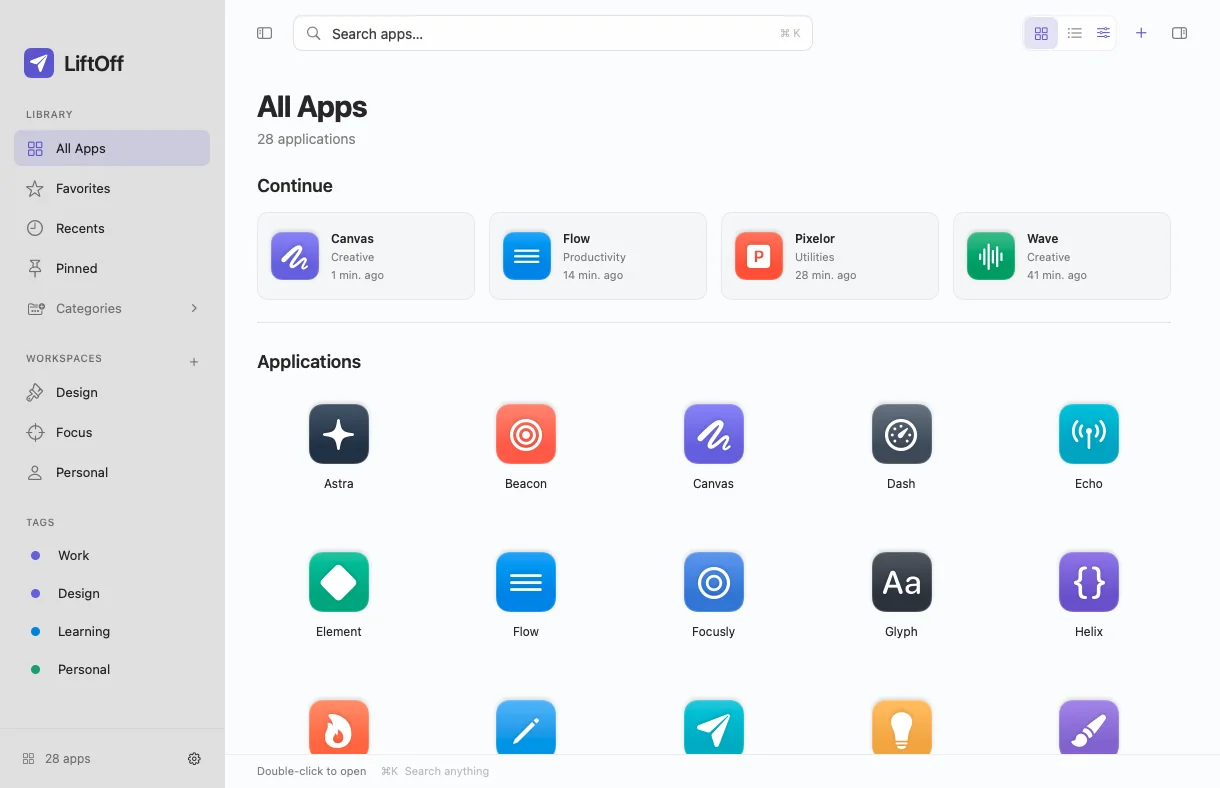
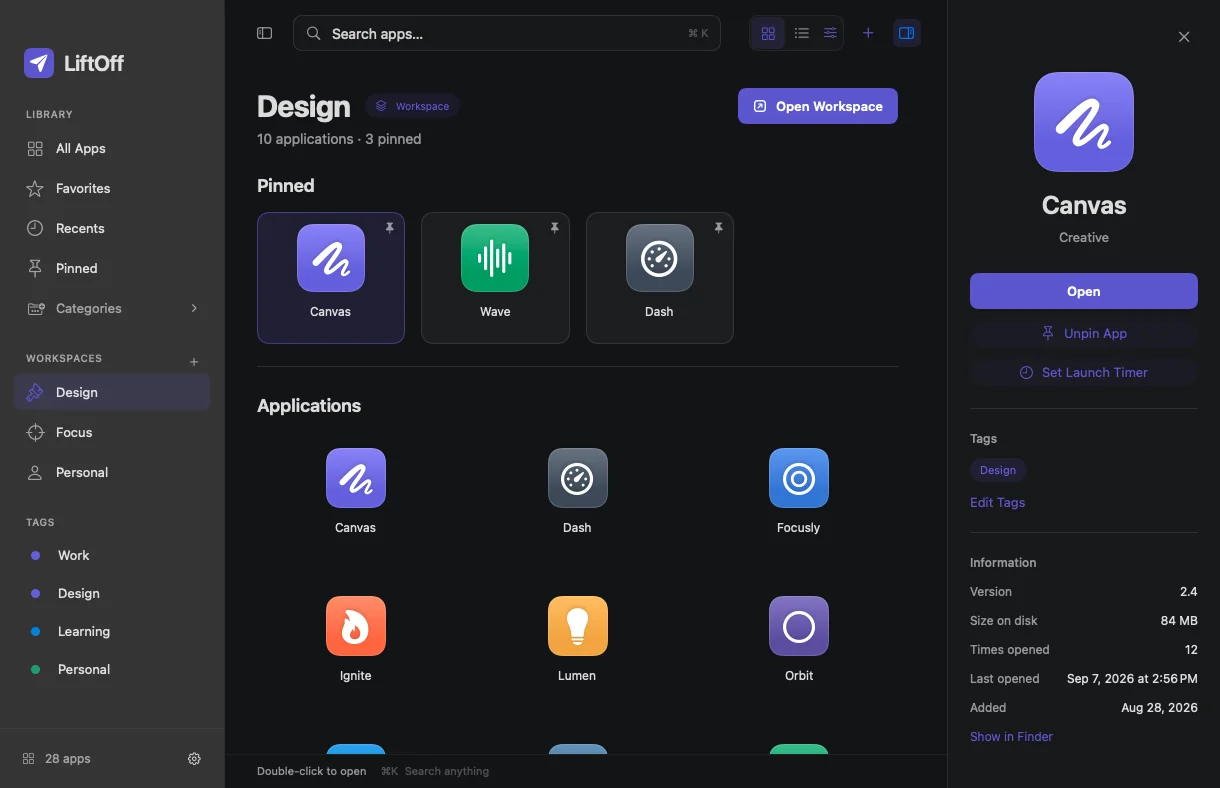
LiftOff gathers every app on your Mac into one library you can organize your way. Open a whole set of apps as a workspace, and press ⌘K to find anything.
Mac · macOS 14 or later
How it works
Four steps, start to finish.
- 1
Scan
LiftOff finds apps in Applications, your own Applications folder, the system apps and Homebrew casks.
- 2
Organize
Favorite, pin, tag, file, hide or re-categorize, one app or many at once, with Undo.
- 3
Build workspaces
Group the apps you use together for design, focus or anything else.
- 4
Launch
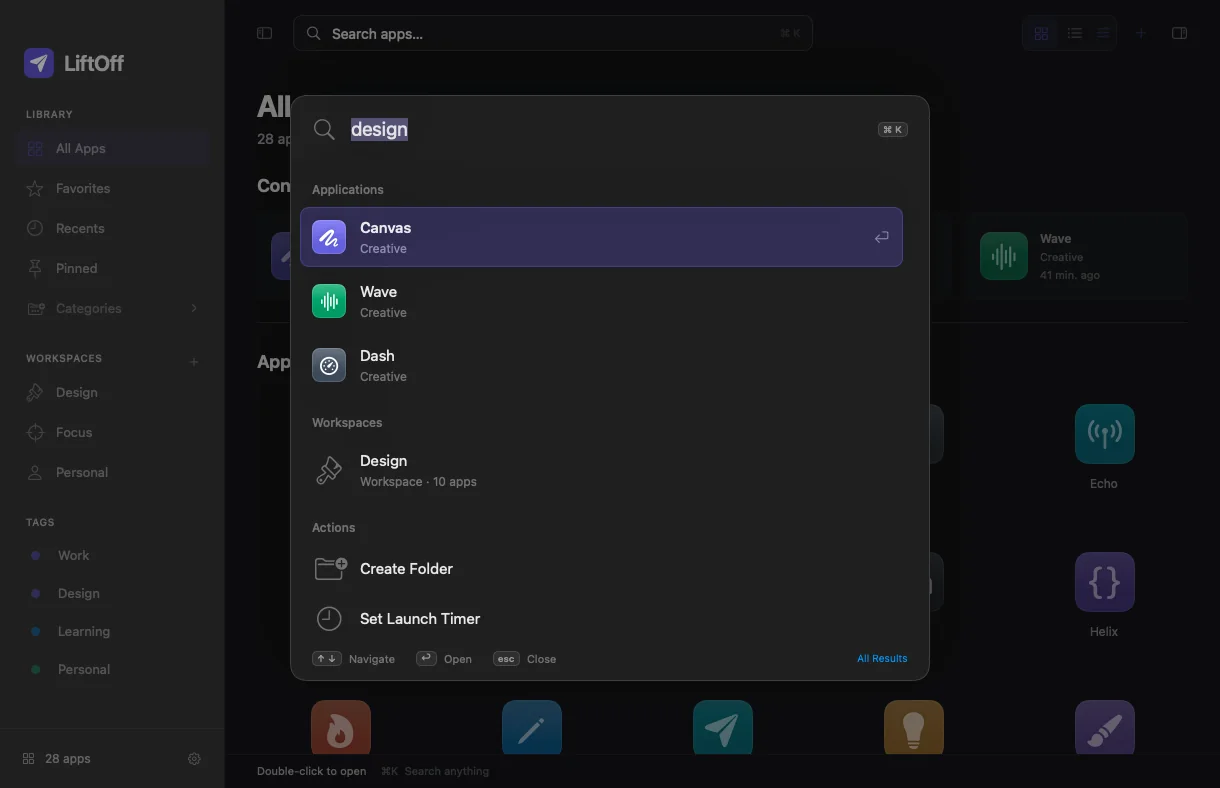
Press ⌘K, or the global shortcut from any app, type a few letters and press Return.
A closer look
See it in action.
Shown with sample apps.
Features
What it does
One library
All Apps, Favorites, Recents, Pinned, Hidden, Categories, Workspaces, Folders and Tags in one sidebar.
Four ways to view
Grid, compact grid, list or by category, with adjustable icon size and spacing.
Workspaces
Open a set of apps together, watch progress, and retry only the failures or stop the rest.
Command palette
⌘K searches apps, workspaces and actions like Create Folder or Rescan. Accents don’t matter: “cafe” finds “Café”.
Global shortcuts
Show LiftOff or jump straight to search from any app. Both shortcuts can be changed.
Menu bar launcher
Search and launch from the menu bar without opening the main window.
Launch timers
Open an app at a set time on the days you choose while LiftOff is running.
Batch organizing
Right-click a selection to favorite, pin, tag, file or hide. Undo and Redo cover every organizing change.
Backups and recovery
Rolling backups, a recovery mode if a file is damaged, and export or import with a preview.
Privacy
Your library lives on your Mac.
No account, no tracking
The app’s privacy manifest declares no data collection and no tracking.
One optional network call
If you run an update check, LiftOff asks Apple’s App Store lookup about apps that came from the App Store. It never installs anything.
Permissions are optional
Accessibility is only needed for the global shortcuts. Focus access is optional too.
Keyboard
Shortcuts worth knowing
Questions
Good to know
Do I need an account?
No. Your library is stored on your Mac and nothing is uploaded automatically.
What permissions does it need?
None to get started. Accessibility is optional and only needed for the global shortcuts.
Can LiftOff update or delete my apps?
It never installs updates, though an optional check can tell you when they exist. Move to Trash always asks first and only works on apps in your Applications folders.
Do launch timers work when LiftOff is closed?
No. Timers run while LiftOff is open, and catch up after sleep within 24 hours.
What if my library file gets damaged?
LiftOff tries its backups first. If they fail, it opens in recovery mode and lets you import a good copy without overwriting anything.
Platforms
Mac
macOS 14 or later
Get it
- Coming soon. The download will be linked here.